Yes Launches Split-Screen Feature for Simultaneous Election Broadcasts
Israeli television provider yes is offering yes+ subscribers the yes SPLIT feature for simultaneous viewing of two broadcasts, such as election exit polls, on a single screen.
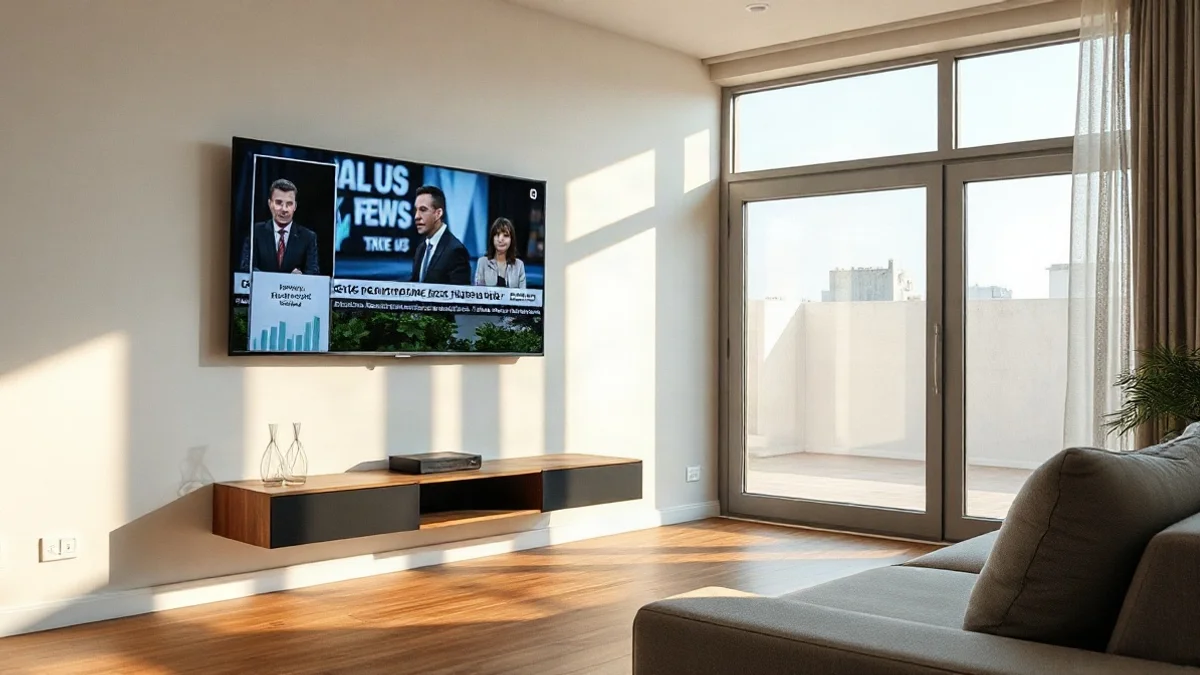
Ahead of the upcoming election day, the Israeli television provider yes is offering its yes+ subscribers a feature allowing simultaneous viewing of two broadcast feeds on a single screen. Dubbed "yes SPLIT", the service was initially launched earlier this year for the World Cup matches and has now been adapted for a packed evening of election exit polls. This dedicated development enables viewers to compare results and coverage across different channels in real time, or alternatively follow a news broadcast alongside an entertainment show, movie, or sports game.
The initiative aims to address the phenomenon of frequent channel surfing, particularly during dramatic broadcast evenings. According to the company's 2025 viewing habits report, an average Israeli household zaps between channels roughly 50 times a day. The split-screen service now enables subscribers to monitor two channels simultaneously without repeatedly switching back and forth or missing crucial updates. Company data shows that broadcast channels lead the list of networks utilizing the feature, followed closely by sports channels.
How to Activate the Split Screen
The new service is provided at no additional cost for yes+ customers using Android TV and Apple TV set-top boxes. To activate the feature, viewers must first select their primary channel. Next, they need to press and hold the center button on their smart remote to open the quick actions menu and select the simultaneous viewing option.
In the next step, users enter the number of the secondary channel they wish to watch using the number keys or the on-screen keyboard. During split-screen viewing, subscribers can navigate between the different displays using the remote's arrow keys and swap the broadcasted channel on either screen. To return to standard full-screen display, viewers select the desired screen and press the center button briefly or choose the "switch to full screen" option from the menu.